How to Install Lazarus IDE in Ubuntu 20.04, 18.04, 21.10
This
is a step by step guide shows how to install the Lazarus IDE in Ubuntu
18.04, Ubuntu 20.04, Ubuntu 21.10 and their derivatives, e.g., Linux
Mint, Elementary OS and more.
Lazarus is a free Delphi compatible
cross-platform IDE for rapid application development using the Free
Pascal compiler. User may install the project either from Ubuntu
repository or by using the official DEB packages.
Lazarus IDE in Ubuntu
Option 1: Install Lazarus via Ubuntu repository:
Ubuntu
includes Lazarus in its own repositories, but it does not provide
updates for the package. So the package will always be old, though Ubuntu 21.10 has v2.0.12, most recent release at the moment.
The good side is that user may install the package on 64-bit modern PC, old 32-bit PC on Ubuntu 18.04, and/or arm64/armhf devices (e.g., Apple silicon and Raspberry Pi).
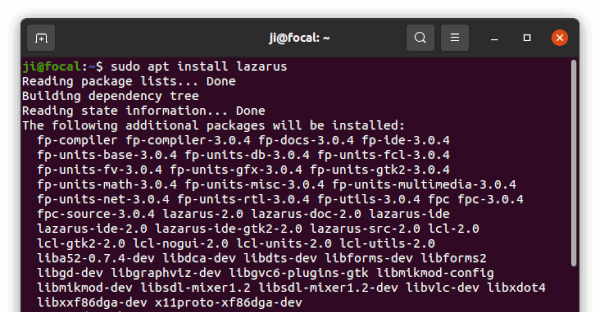
To install the package, press Ctrl+Alt+T on keyboard to open terminal. When it opens, paste the command below and hit Enter:
sudo apt install lazarus
This command will install Lazarus, fpc compiler, as well as all other required packages:
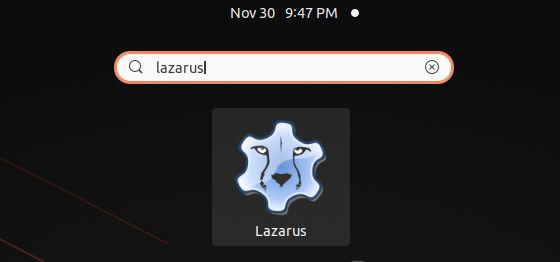
Once installed, search for and open the IDE from activities overview and enjoy!
Option 2: Install Lazarus via its official DEB packages:
The
IDE provides official Linux packages available to download at the
sourceforge.net. You can always get the latest version from the link
button below, though it’s only provides packages for modern 64-bit and
old 32-bit PC.
fpc-laz – the Compiler, some command line tools, base units and non visual components like database access
fpc-src – the sources of fpc and its packages, needed for code browsing
lazarus-project – the IDE, visual components and help files
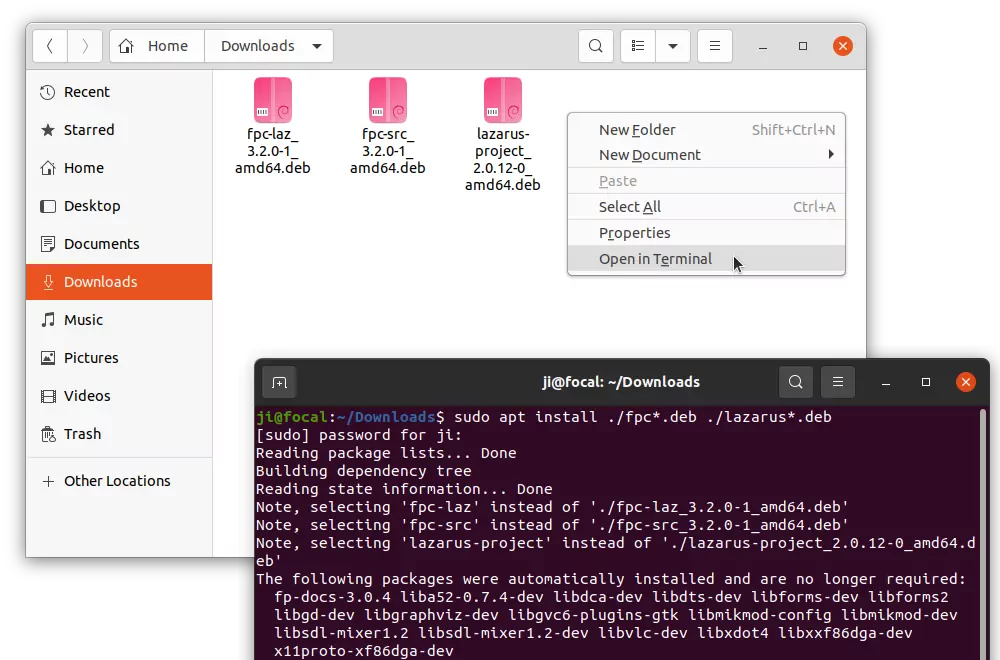
Grab all the 3 packages. Then, open file manager and go to ‘Downloads‘ folder, right-click and choose ‘Open in Terminal‘ to open terminal with that folder as working directory. Finally, run command to install them:
NOTE:
the official package conflicts with the one in Ubuntu own repository.
Though the IDE supports for having multiple package versions in same
system, installing Lazarus via either way in this tutorial will remove
another (if any) automatically.
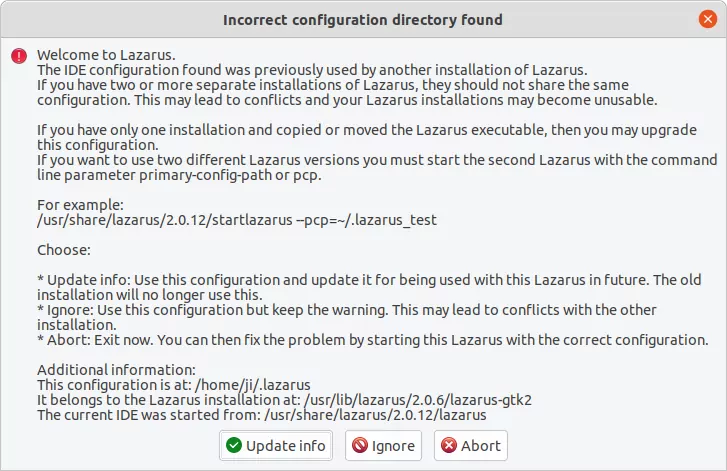
And it will prompt to either upgrade or downgrade configuration when switching between different app versions on first startup.
Uninstall Lazarus:
To remove the Lazarus IDE, run command below in terminal will do the trick for the software installed via both methods.
$ sudo lsusb
Bus 002 Device 001: ID 1d6b:0003 Linux Foundation 3.0 root hub
Bus 001 Device 004: ID 0bda:2838 Realtek Semiconductor Corp. RTL2838 DVB-T
Bus 001 Device 002: ID 046d:c52b Logitech, Inc. Unifying Receiver
Bus 001 Device 003: ID 04b4:120d Cypress Semiconductor Corp.
Bus 001 Device 001: ID 1d6b:0002 Linux Foundation 2.0 root hub
ID
0bda:2838 Realtek Semiconductor Corp. RTL2838
DVB-TがUSBチューナのポートになるので、/lib/udev/rules.d/60-librtlsdr0.rulesの該当する記述の権限設定を、0660→0666に書き換えます。(以下表示は適宜改行しています)
$ gnuradio-companion
Gtk-Message: 20:00:50.802: Failed to load module "canberra-gtk-module"
<<< Welcome to GNU Radio Companion 3.7.11 >>>

Block paths:
  /usr/share/gnuradio/grc/blocks
  /usr/local/share/gnuradio/grc/blocks

linux; GNU C++ version 7.3.0; Boost_106501; UHD_003.010.003.000-0-unknown

>>> Done
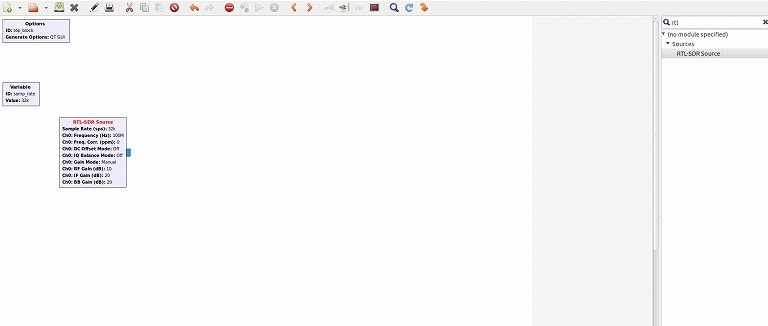
gnuradioが起動すると次のような画面が出て、あとの使い方はWindows版とほぼ同一です。
Failed
to load module
"canberra-gtk-module"というメッセージが出ますが、イベントサウンドを再生させるモジュールです。インストールしなくともgnuradioは動作しますが、不具合があると困るのでインストールしておきます。
 * Serving Flask app "app" (lazy loading)
 * Environment: production
   WARNING: Do not use the development server in a production environment.
   Use a production WSGI server instead.
 * Debug mode: on
 * Running on http://127.0.0.1:8000/ (Press CTRL+C to quit)
 * Restarting with stat
 * Debugger is active!
 * Debugger PIN: 284-231-902






![[PR]骨盤底筋ガードル「me&Re」](https://stat.amebame.com/pub/ads/rch/bnr/3d9d230b-0779-452a-840b-3da6b6b24f59.jpg?ext=j5)